

 Arabic
  English
  German
  French
  Spanish
  Turkish
  Italian
  Russian
  Persian
  Bengali
  Hebrew
  Persian (Afghanistan)
  Scottish Gaelic
  Panjabi
  Croatian
  Slovenian
  Greek
Greek  Afrikaans
  Czech
Czech  Korean
  Japanese
  Portuguese




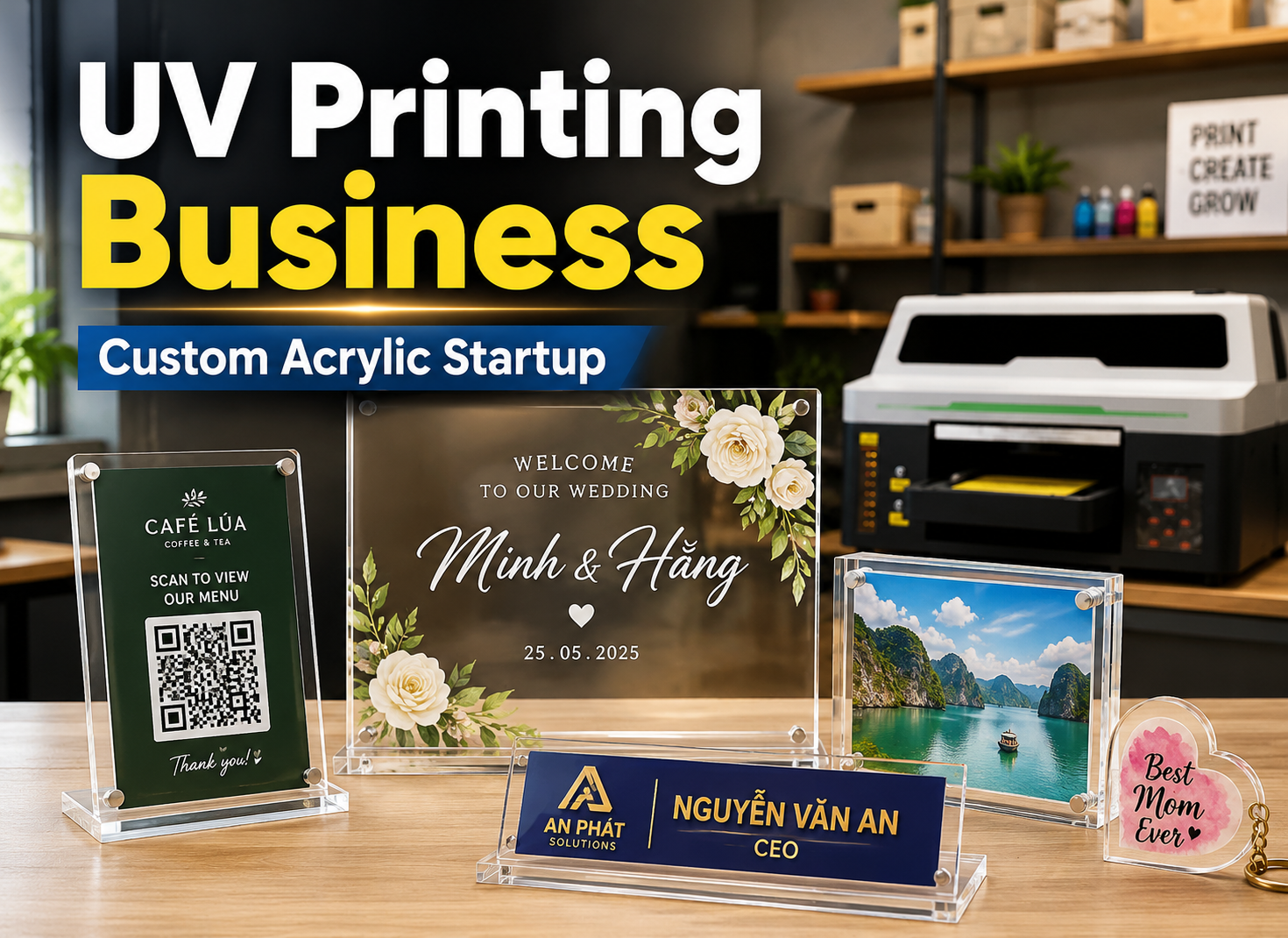
Variable Data Printing for UV Printers: Batch Images, QR Codes and Barcodes Without Manual Editing
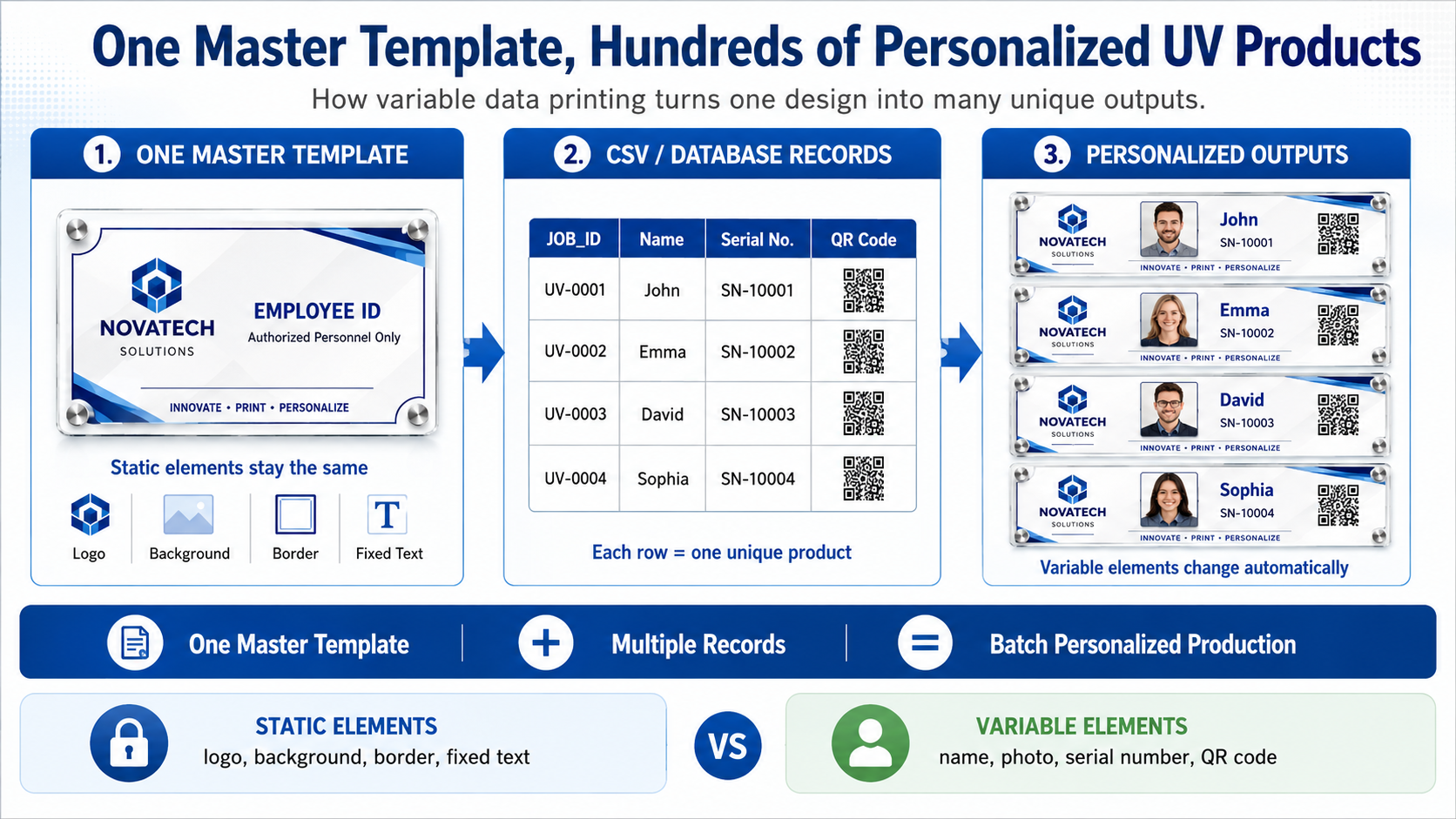
A customer orders 500 aluminum nameplates. Every plate uses the same background, logo and layout, but each one has a different employee name, serial number and QR code.
The traditional approach is painful: duplicate the artwork 500 times, replace the text, generate each QR code, check the serial numbers, export hundreds of files and then send them to the RIP one by one. It is slow, difficult to verify and creates many opportunities for human error.
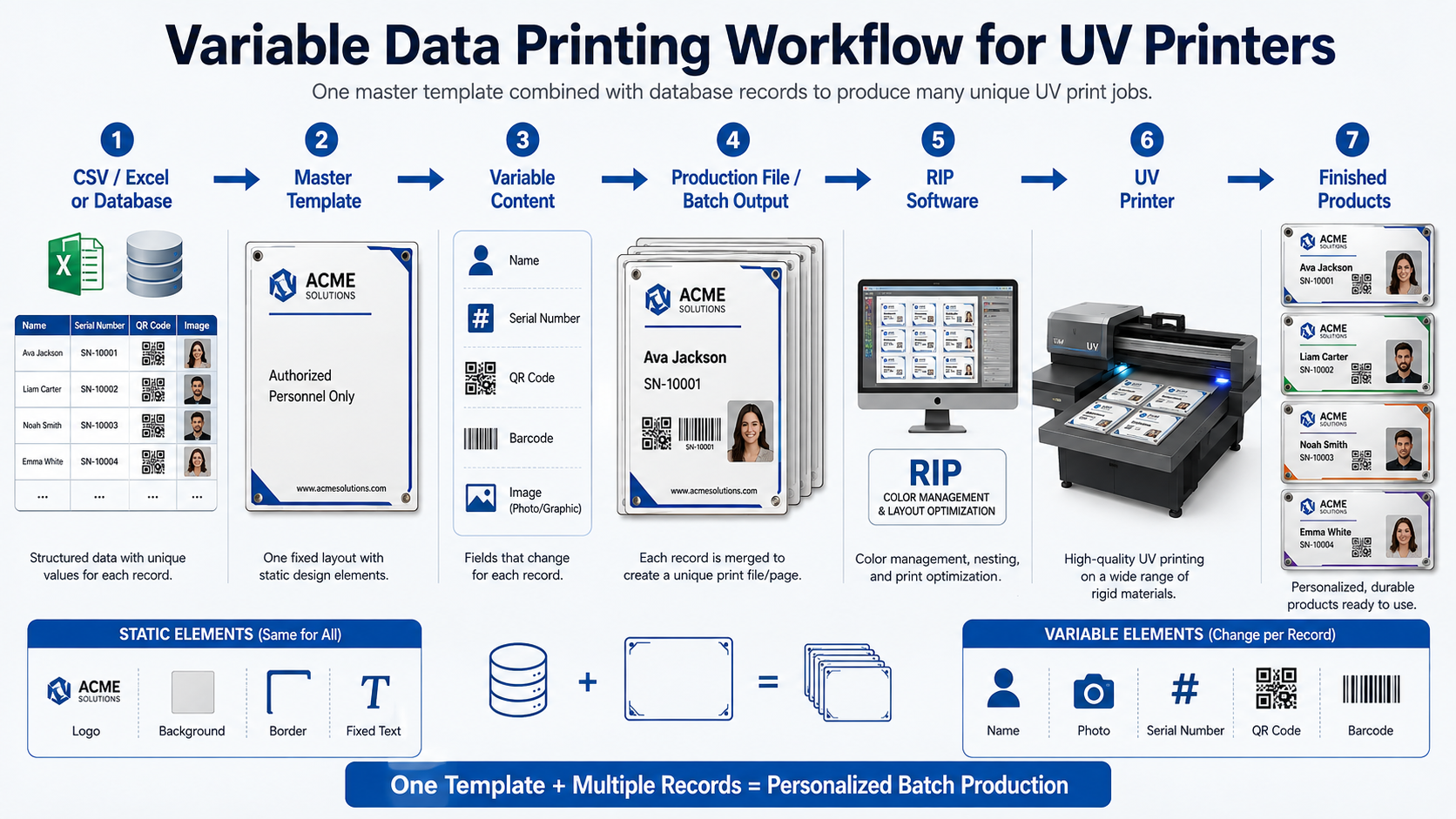
Variable data printing for UV printers provides a much more efficient solution. Instead of creating hundreds of individual artwork files, you create one master template and connect it to a structured data source such as a CSV file, spreadsheet or database. Variable text, images, serial numbers, QR codes and barcodes can then change automatically for every record.
The basic workflow looks like this:
CSV / Database → Master Template → Variable Content → Production File → RIP → Nesting → UV Printer → Verification
This guide explains how the workflow works, how to prepare data correctly, how to handle QR codes and barcodes, and how to prevent the most common errors when producing hundreds of personalized UV-printed products.
What Is Variable Data Printing?
Variable Data Printing, usually shortened to VDP, is a digital printing workflow in which selected elements of a design change automatically from one printed item to the next while the basic layout remains the same.
Static Printing vs Variable Data Printing
In a traditional workflow, a shop might prepare:
- File 001 – John – SN0001
- File 002 – Emma – SN0002
- File 003 – David – SN0003
- File 004 – Sophia – SN0004
- and hundreds more.
With VDP, you instead prepare:
One Master Template + 500 Database Records = 500 Unique Outputs
The template contains the fixed design. The database provides the information that changes.
Which Elements Can Be Variable?
Common variable fields in UV printing include:
- customer names;
- employee IDs;
- serial numbers;
- product SKUs;
- dates and batch numbers;
- different photographs;
- different logos;
- unique QR codes;
- barcodes or Data Matrix codes;
- different quantities or production information.
What Remains Static?
Elements that normally stay unchanged can remain in the master artwork, including:
- company logo;
- background graphics;
- borders;
- fixed instructions;
- legal text;
- product dimensions;
- general branding elements.
This separation between static and variable content is what makes VDP scalable.
Where Is Variable Data Printing Useful in UV Printing?
VDP becomes valuable whenever many products share the same basic design but require different information.
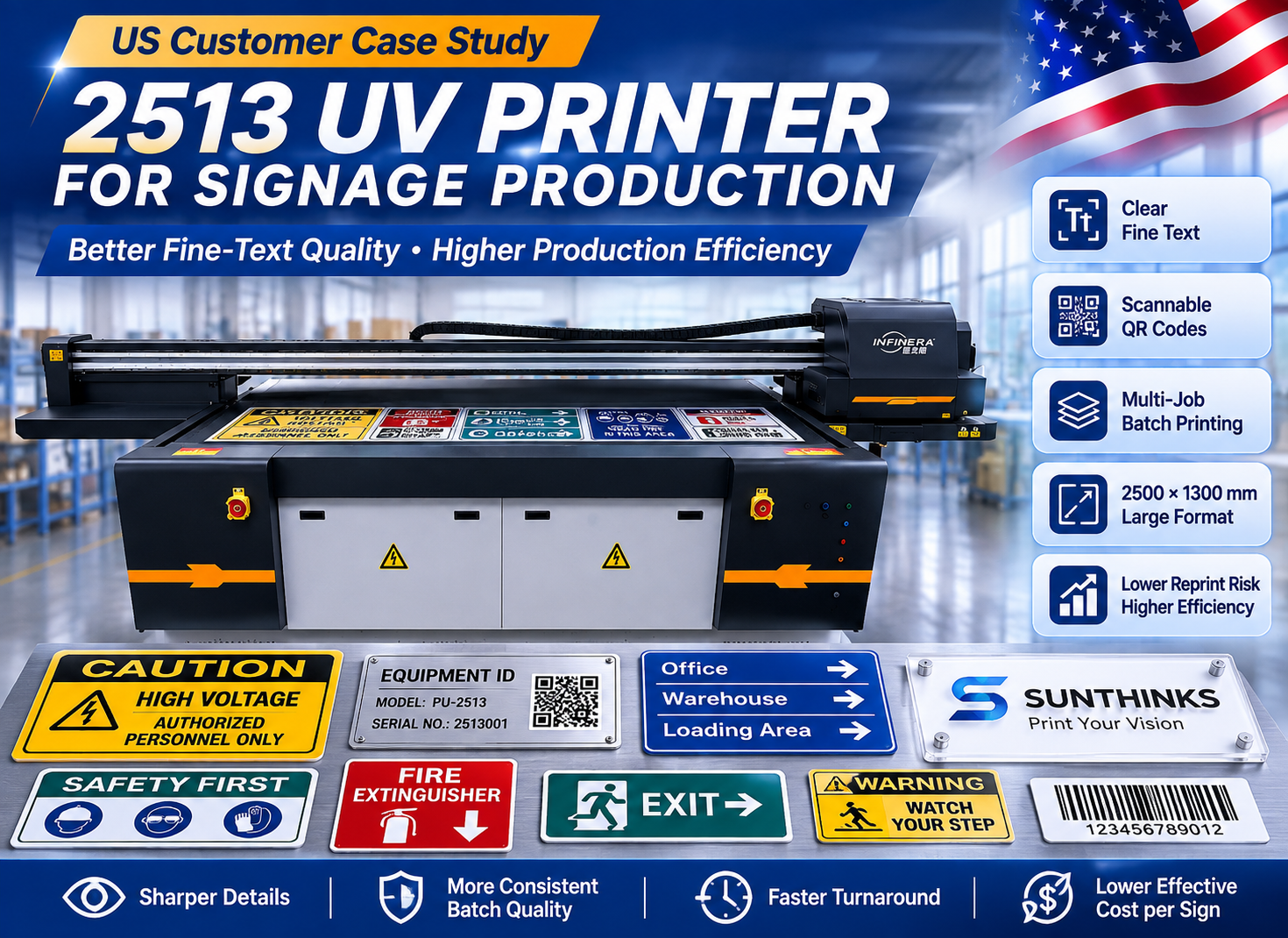
Industrial Nameplates
An industrial customer may order hundreds of aluminum or acrylic nameplates with unique machine IDs, model numbers and serial numbers.
Instead of editing each plate manually, the production file can pull values such as:
SN0001 → SN0002 → SN0003 → SN0004…
QR Code Signs
Each printed QR code can point to a different destination, including:
- product manuals;
- maintenance records;
- equipment registration pages;
- restaurant menus;
- hotel information;
- customer-specific landing pages.
Personalized Acrylic Products
A UV printing business may produce awards, photo blocks, wedding signs or personalized gifts in which every item contains a different name, photograph, date or message.
Membership Cards and Identification Products
Variable fields can include a member name, membership number, photo, barcode and QR code while the overall branding remains identical.
Packaging and Product Identification
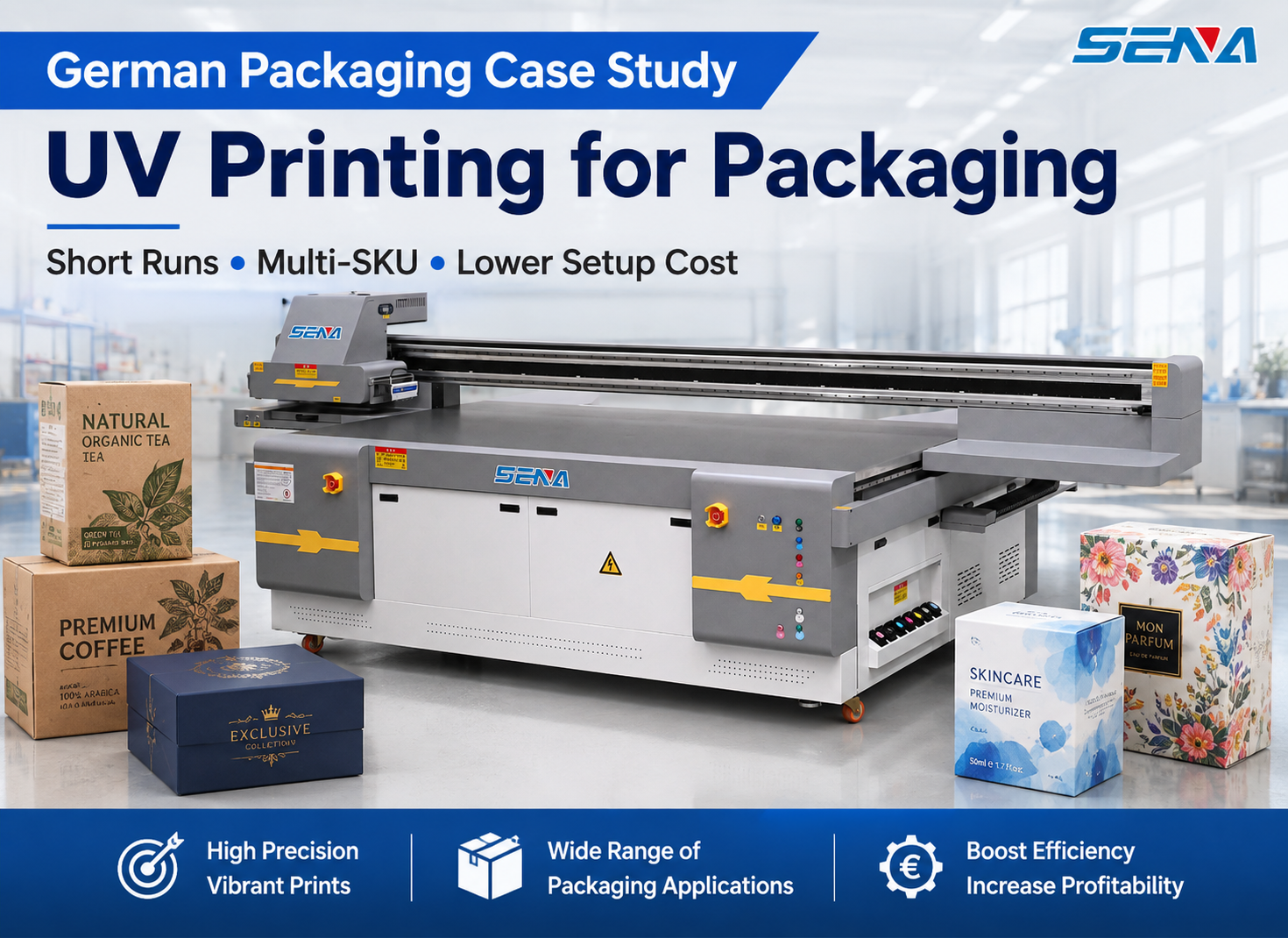
Short-run packaging can use VDP for:
- SKU changes;
- serial numbers;
- batch information;
- unique promotional codes;
- traceability data;
- QR or Data Matrix codes.
Promotional Gifts
Personalized promotional products are another strong application. A business can use the same design while automatically changing customer names, company names, photos or codes.
If you want to explore more product opportunities, see our guide to
UV Printing for Promotional Gifts
.
The Complete UV Variable Data Printing Workflow
A reliable VDP workflow is not simply “import Excel and print.” The data, template, RIP and production process must all be organized correctly.
Step 1: Prepare the Data Source
The data may come from:
- CSV files;
- Excel spreadsheets;
- customer databases;
- ERP exports;
- Web-to-Print systems;
- e-commerce order data.
Each column normally represents one variable field, while each row represents one personalized output.
Step 2: Build One Master Template
The master template defines the fixed production layout:
- product size;
- logo position;
- text frames;
- image frames;
- QR or barcode areas;
- safe margins;
- fixed graphic elements.
Step 3: Map the Variable Fields
For example:
NAME          → Text Box A
SERIAL_NUMBER → Text Box B
IMAGE_PATH    → Image Frame A
QR_DATA       → QR Code Field
BARCODE_DATA  → Barcode Field
Once the fields are mapped, each database row automatically changes the corresponding elements in the design.
Step 4: Generate the Production Output
Depending on the software environment, the VDP application may create:
- a multi-page PDF;
- a PDF/VT job;
- individual automatically generated files;
- another RIP-compatible variable production format.
PDF/VT was designed specifically for variable and transactional print workflows and can improve the way repeated graphic elements and variable content are processed. However, not every RIP configuration supports every VDP format, so compatibility should always be confirmed before building a production workflow around it.
Step 5: Process the Job Through the RIP
The RIP handles the production settings required by the UV printer, such as color management, resolution, white ink, layout and print queue preparation.
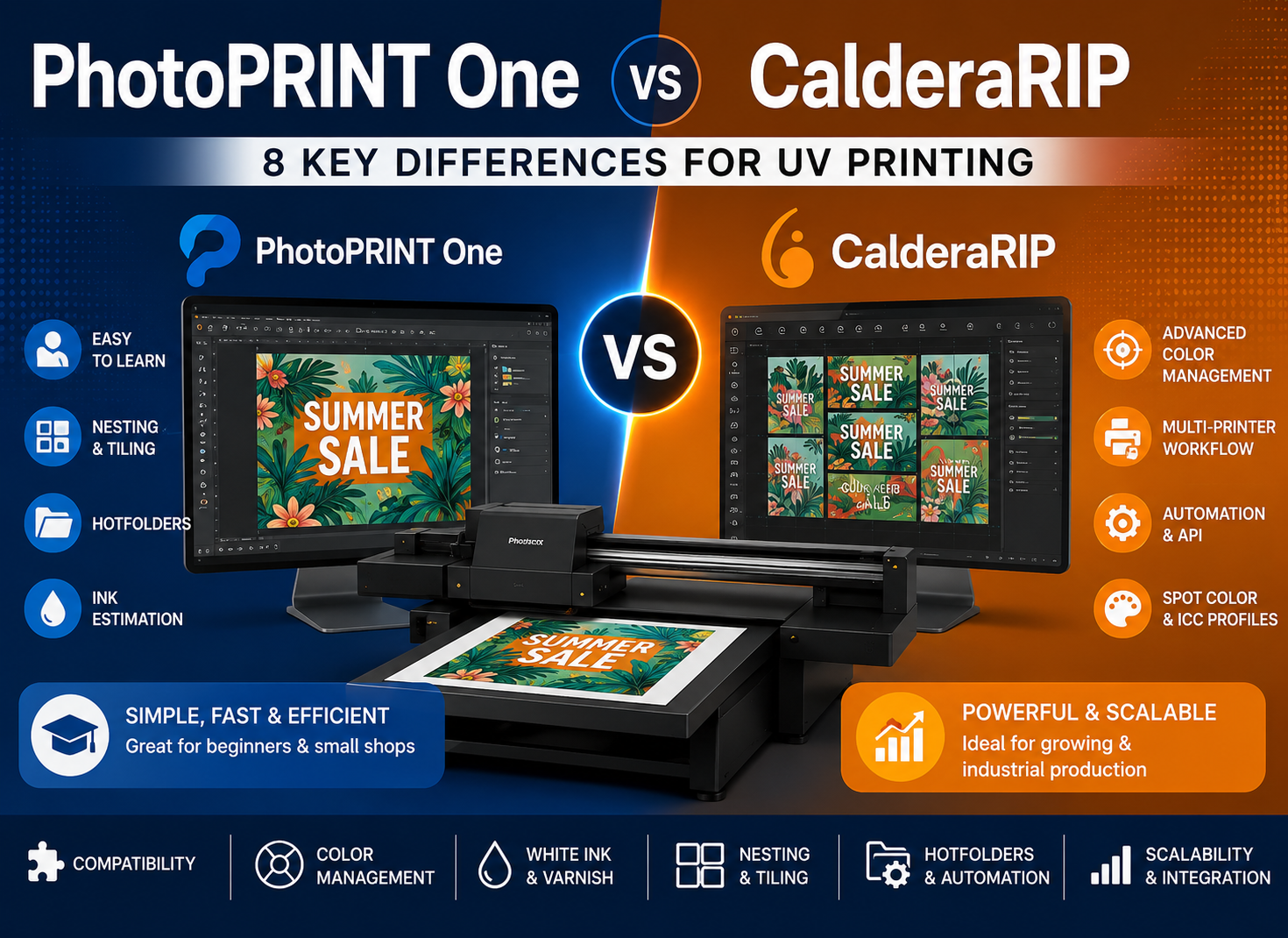
If you are still evaluating RIP software, see:
PhotoPRINT One vs CalderaRIP for UV Printing: 8 Key Differences Beginners Should Know
.
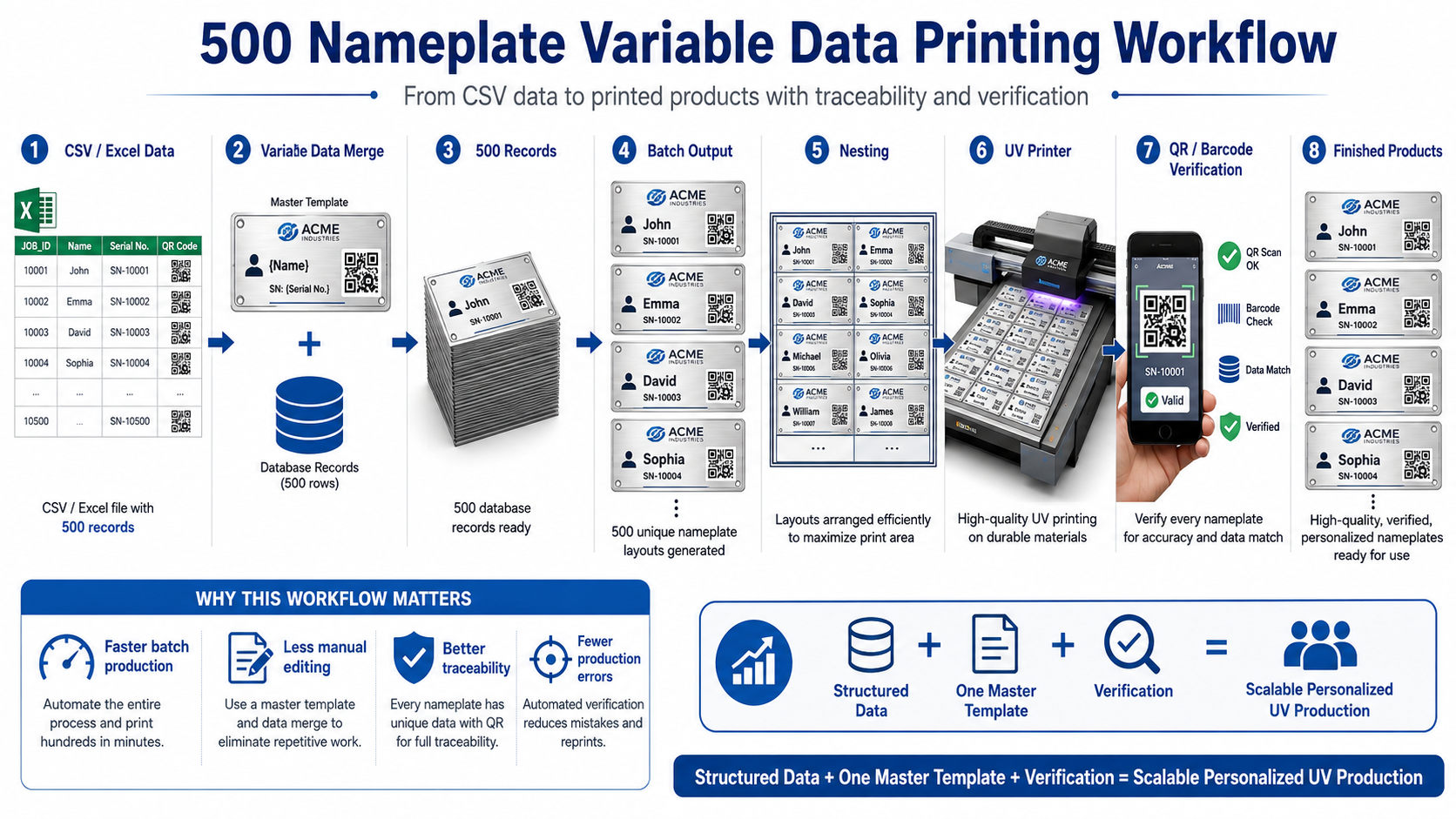
Step-by-Step Example: Print 500 Unique UV Nameplates
Consider a real production scenario: a factory orders 500 aluminum employee nameplates.
Every plate uses the same size and company design but requires a different:
- employee name;
- employee ID;
- serial number;
- QR code.
Step 1: Prepare the CSV File
A structured CSV file might contain:
JOB_ID,NAME,EMPLOYEE_ID,SERIAL_NUMBER,QR_DATA,IMAGE_PATH,QUANTITY
UV-0001,John Smith,E1024,SN0001,https://example.com/0001,john.jpg,1
UV-0002,Emma Wilson,E1025,SN0002,https://example.com/0002,emma.jpg,1
UV-0003,David Lee,E1026,SN0003,https://example.com/0003,david.jpg,1
Keep One Record Per Product
A simple rule makes verification much easier:
One row = one unique personalized product.
Use a Unique JOB_ID
Do not rely only on the customer’s name. Names can repeat.
Use a unique production identifier such as:
UV-0001
UV-0002
UV-0003
This ID can follow the job through artwork generation, printing, inspection and packing.
Validate the Data Before Printing
Before generating any production artwork, check the database for:
- duplicate serial numbers;
- empty required fields;
- incorrect URLs;
- missing image files;
- unexpected characters;
- incorrect quantities.
Fixing a database error before production is much cheaper than discovering it after 500 products have been printed.
Step 2: Build the Master Template
The template should define:
- name position;
- employee ID position;
- serial-number position;
- QR code area;
- logo and fixed graphics;
- safe margins from product edges.
Step 3: Connect Variable Text
The template may use variable placeholders such as:
{{NAME}}
{{EMPLOYEE_ID}}
{{SERIAL_NUMBER}}
The VDP software replaces each placeholder with the corresponding value from the current database record.
Step 4: Connect Variable Images
Different records can also call different image files.
For example:
UV-0001 → john.jpg
UV-0002 → emma.jpg
UV-0003 → david.jpg
Image frames should be designed to handle different aspect ratios safely. Decide whether images will fit, fill or crop before generating hundreds of outputs.
Step 5: Generate QR Codes or Barcodes
The database can contain the underlying code data rather than pre-generated QR images.
For example:
https://example.com/product/UV-0001
The VDP system can convert the data into a unique QR code for each record.
Step 6: Preview the Records
Never approve a 500-record job after checking only the first record.
Preview representative records such as:
- Record 1;
- Record 50;
- Record 250;
- Record 500;
- several randomly selected records.
Look for long text, missing images, unusual characters, incorrect codes and layout overflow.
Step 7: Send the VDP Job to the RIP
Once the data and layout are verified, generate the final production output and import it into the RIP using the validated print preset.
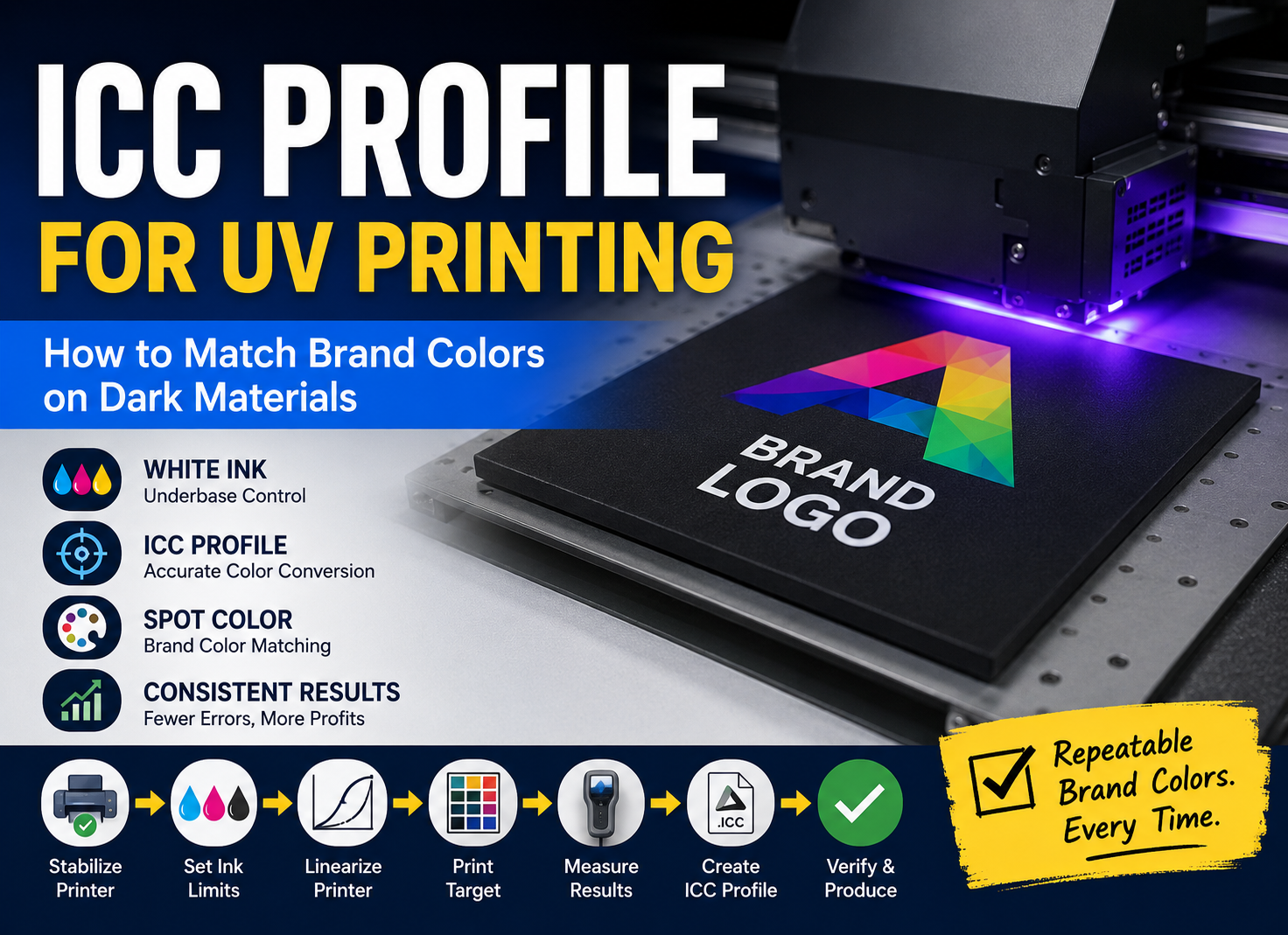
If printing on dark materials, also confirm that the correct white-ink workflow and color profile are active. For more information, see:
ICC Profiles for UV Printing: How to Match Brand Colors on Dark Materials
.
Step 8: Nest and Print
The final personalized jobs still need to be positioned efficiently on the UV printer bed or sheet.
This is where VDP and nesting work together:
VDP creates the unique content. Nesting determines where each item should be placed.
We cover this production stage in:
How to Auto-Nest 50 UV Print Files: A Practical Batch Layout Automation Workflow
.
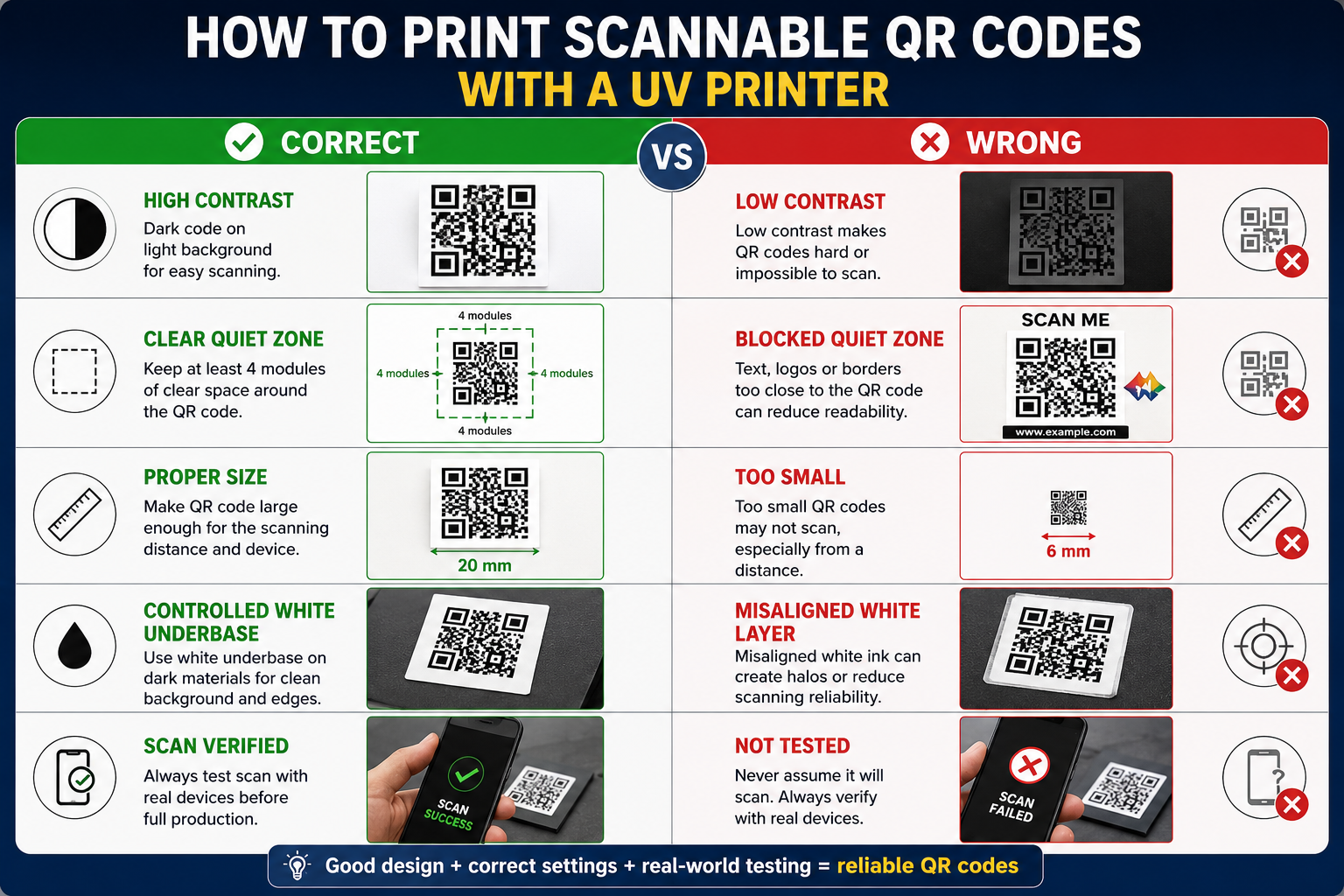
QR Codes and Barcodes: Why Print Quality Matters
Generating a unique QR code is easy. Producing hundreds of codes that can all be scanned reliably is more difficult.
A QR code that looks acceptable to the human eye can still fail when scanned.
Maintain Enough Contrast
For reliable scanning, the dark and light modules should have sufficient contrast.
On black acrylic or another dark substrate, printing a dark QR code directly onto the material may provide poor contrast. A common solution is to create a controlled white background first and then print the dark code above it.
Do Not Make the Code Too Small
There is no single universal minimum physical QR-code size for every application. Required size depends on:
- amount of encoded data;
- QR version;
- module size;
- printer resolution;
- viewing and scanning distance;
- scanner or smartphone performance;
- surface quality.
Always test the smallest planned code under actual production conditions.
Keep the Quiet Zone Clear
A QR code needs a clear margin around it. For a standard QR Code, a quiet zone of four modules around the symbol is typically required.
Do not allow:
- text;
- logos;
- borders;
- background patterns;
- other printed objects
to invade this area.
Control White Ink Registration
When a white background is used under a QR code, white-to-color registration becomes important.
If the white layer shifts beyond the intended area, it can change the edge contrast or appearance of the code.
Avoid Excessive Ink Spread
If printed dots spread too much, small QR or barcode modules may become thicker or merge together. This can reduce readability even though the design file itself is correct.
Use appropriate resolution, ink limits, print mode and curing settings for small codes.
How to Verify 500 Variable Codes Without Checking Everything Manually
VDP reduces artwork preparation time, but it also increases the importance of quality control. An automated workflow can reproduce a mistake hundreds of times if incorrect data enters the system.
Level 1: Validate the Data
Before artwork generation, check:
- required fields;
- duplicate IDs;
- serial-number sequences;
- URL structure;
- file paths;
- quantities.
Level 2: Perform Visual Preflight
Check the generated output for:
- missing images;
- missing fonts;
- text overflow;
- unexpected line breaks;
- blank QR codes;
- incorrect image cropping.
Level 3: Print Representative Samples
Before committing expensive material to the complete production run, print representative samples.
Choose samples from the beginning, middle and end of the database, plus records containing unusually long names or complex codes.
Level 4: Scan the Actual Printed Codes
Do not verify a QR code only on the computer screen.
Scan the actual printed product using the type of device the customer is likely to use.
يتذكر:
A QR code that scans successfully can still contain the wrong data.
Therefore, confirm both readability and destination accuracy.
Level 5: Maintain Job Traceability
A strong production workflow keeps:
JOB_ID → Database Record → Printed Product → Inspection → Packing
connected throughout production.
This becomes especially important for industrial labels, serialized parts and other applications where the wrong code on the wrong product may cause more serious problems than a simple cosmetic print defect.
8 Common Variable Data Printing Mistakes
1. Duplicate Serial Numbers
If duplicate serial numbers exist in the database, automation will reproduce them perfectly. Validate uniqueness before production.
2. Missing Image Files
An incorrect image path can create a blank frame or error. Validate all image assets before merging the data.
3. Text Overflow
A template that looks perfect with “John Li” may fail with “Alexander Christopher Montgomery.”
Define rules for long names, such as dynamic font sizing, maximum character length or manual review.
4. Wrong QR Code Data
A QR code can scan perfectly and still open the wrong product page. Always verify the underlying data.
5. QR Code Too Small
Do not shrink codes simply to fit a crowded design. Test the actual printed size and scanning distance.
6. Quiet Zone Is Blocked
Decorative graphics placed too close to the QR code can reduce reliability. Keep the required clear area free from visual interference.
7. Wrong Record-to-Product Order
The print file may be correct but finished pieces can become mixed during unloading, inspection or packing. Use job IDs, trays, fixtures or documented sequences to maintain traceability.
8. No Verification Before Full Production
Do not let automation turn one small mistake into 500 defective products.
Validate the data, preview the output and print a small test batch before full production.
Variable Data Printing vs Automatic Nesting: What Is the Difference?
These two technologies are often discussed together, but they solve different problems.
Variable Data Printing Solves:
What changes inside each product?
For example:
- name;
- photo;
- serial number;
- QR code;
- barcode;
- customer information.
Automatic Nesting Solves:
Where should each job be placed on the available print area?
For example, once 50 personalized products have been generated, nesting determines how to arrange them efficiently on a 1300 × 900 mm print bed or another available production area.
In simple terms:
VDP creates unique jobs.
Nesting arranges those jobs efficiently.
Download Template: UV Variable Data Printing Fields
A standardized spreadsheet structure can greatly simplify future VDP projects.
A practical template can include:
JOB_ID
SKU
CUSTOMER_NAME
TEXT_1
TEXT_2
SERIAL_NUMBER
IMAGE_PATH
QR_DATA
BARCODE_DATA
QUANTITY
MATERIAL
PRINT_PRESET
Why Include MATERIAL and PRINT_PRESET?
These fields become valuable as production automation grows.
For example:
MATERIAL = Black Acrylic
PRINT_PRESET = White + CMYK / 8 Pass
In a more advanced workflow, this information can eventually help route different jobs toward the correct production preset instead of relying on an operator to remember every setting manually.
This becomes especially useful when connecting e-commerce or Web-to-Print orders to production. We will cover that architecture in:
Web-to-Print for UV Printing: 3 Ways to Automate Orders from Website to RIP
.
When Should a UV Print Shop Use VDP?
Variable Data Printing is not necessary for every order. It becomes most valuable when several conditions appear together.
High Repetition
The basic product layout remains the same across many items.
High Content Variation
Names, codes, images or serial numbers change from one item to the next.
Frequent Orders
The same type of personalized production is repeated daily or weekly.
High Risk of Human Error
Manual copying and pasting creates a realistic risk of duplicate, missing or incorrect data.
Need for Traceability
Serial numbers, QR codes and industrial labels often require each printed product to remain connected to the correct database record.
The more standardized the layout and the more variable the content, the more valuable VDP becomes.
Final Takeaway: Build One Template, Not 500 Files
The biggest efficiency gain in Variable Data Printing does not come from creating 500 files faster. It comes from eliminating the need to create 500 individual files manually.
A well-designed workflow uses:
Database
↓
Master Template
↓
Variable Text / Images / Codes
↓
Production PDF / PDF-VT
↓
RIP
↓
Nesting
↓
طابعة الأشعة فوق البنفسجية
↓
Verification
Start with clean data. Build one validated master template. Test the longest names and most difficult records. Confirm QR-code readability on the actual printed material. Maintain job IDs through printing and packing.
Once those rules are standardized, VDP can transform personalized UV printing from a labor-intensive prepress task into a scalable production workflow.
The goal of VDP is not to make manual file creation faster. It is to remove unnecessary manual file creation from the workflow.
الأسئلة الشائعة
What is variable data printing for UV printers?
Variable data printing for UV printers is a workflow in which one master design is connected to a database or spreadsheet so that selected fields such as names, images, serial numbers, QR codes and barcodes change automatically for each printed item.
Can a UV printer print different QR codes automatically?
Yes. If your VDP software, output format and RIP workflow support the required process, unique QR-code data can be generated for each database record and printed as part of a batch production job.
Can I use Excel or CSV for variable data printing?
Yes. CSV and spreadsheet files are commonly used as structured data sources. The actual merging process depends on the VDP or design software being used.
Can variable data printing include different images?
Yes. A database can reference different image files for different records. This is useful for personalized gifts, membership cards, awards and customized photo products.
What is PDF/VT?
PDF/VT is a PDF standard designed for variable and transactional printing. It can efficiently package repeating design elements and changing data for high-volume personalized print workflows. Whether it can be used directly depends on the RIP and production environment.
Why won’t my printed QR code scan?
Common causes include insufficient contrast, a code that is too small, a blocked quiet zone, excessive ink spread, poor white-underbase registration, unsuitable print resolution or incorrect QR data. Always test the actual printed code before full production.
Build a More Efficient Personalized UV Printing Workflow
If your current production team manually creates dozens or hundreds of files for names, serial numbers, photos or QR codes, review where the repeated work occurs.
Start by standardizing:
- database structure;
- master templates;
- file naming;
- QR and barcode rules;
- RIP presets;
- verification procedures;
- job traceability.
Once these elements are controlled, the workflow becomes easier to automate and easier to scale as order volume grows.
Previous in the Workflow & RIP Mastery Series:
ICC Profiles for UV Printing: How to Match Brand Colors on Dark Materials
Next in the Workflow & RIP Mastery Series:
How to Auto-Nest 50 UV Print Files: A Practical Batch Layout Automation Workflow